[ fcp://@fc.onlinehelp.com,%237600229/En/OnlineHelp/Web%20Help/LW2 ]Contents [ fcp://@fc.onlinehelp.com,%237600229/En/OnlineHelp/Web%20Help/LW31 ][Image:81203_43854_21.png][ fcp://@fc.onlinehelp.com,%237600229/En/OnlineHelp/Web%20Help/LW42 ][Image:81203_43840_19.png] [Marker][ fcp://@fc.onlinehelp.com,%237600229/En/OnlineHelp/Web%20Help/LW32#The reading pane ]The reading pane [ fcp://@fc.onlinehelp.com,%237600229/En/OnlineHelp/Web%20Help/LW32#Opening the reading pane ]Opening the reading pane --------------- [Marker]The reading pane When the reading [ fcp://@fc.onlinehelp.com,%237600229/En/OnlineHelp/Definitions/L2018 ]pane is open, it is displayed under or to the right of the main pane. The reading pane displays the contents of any object selected in the main pane. For example, a selected message or document opens in this pane. You can work with objects in the reading pane just as you do when they are opened in the main pane. [ fcp://@fc.onlinehelp.com,%237600229/En/OnlineHelp/Web%20Help/LW32#Top ]Top --------------- [Marker]Opening the reading pane To open the reading pane, click this button: [Image:892006_13851_0.png] This button is only visible if you have the navigation pane open. It [ fcp://@fc.onlinehelp.com,%237600229/En/OnlineHelp/Definitions/L2035 ]toggles through three states. To move the reading pane to the right of the main pane, click this button again. To close the reading pane, click this button a third time. [ fcp://@fc.onlinehelp.com,%237600229/En/OnlineHelp/Web%20Help/LW32#Top ]Top
   
F2011
 
 
Home  •  Help  •  M0  •  Practical Uses for FirstClass  •  101 Uses for FirstClass  •  F2011
81903_22607_2.pngMaintain a conference search list

Minimum version:
FirstClass 8.3

Audience:
All users     

Experience
: 9203_22631_1.png
FirstClass applications used:
        8102006_90722_0.pngConferencing
9203_31709_1.png Summary
Tired of searching through multiple conferences to find what you are looking for? Want to make locating information easier? Create a Search conference on your FirstClass Desktop and link (alias) your commonly searched conferences and folders to it. Then, when you need to find something, perform a search on just that conference to locate the desired information within any of the aliased conferences and folders.
9203_31709_1.png Example
Michael Green monitors about 12 conferences. He is constantly forgetting where he saw information that he needs. He decides to link them all to one conference to make his searches easier.
He does the following:
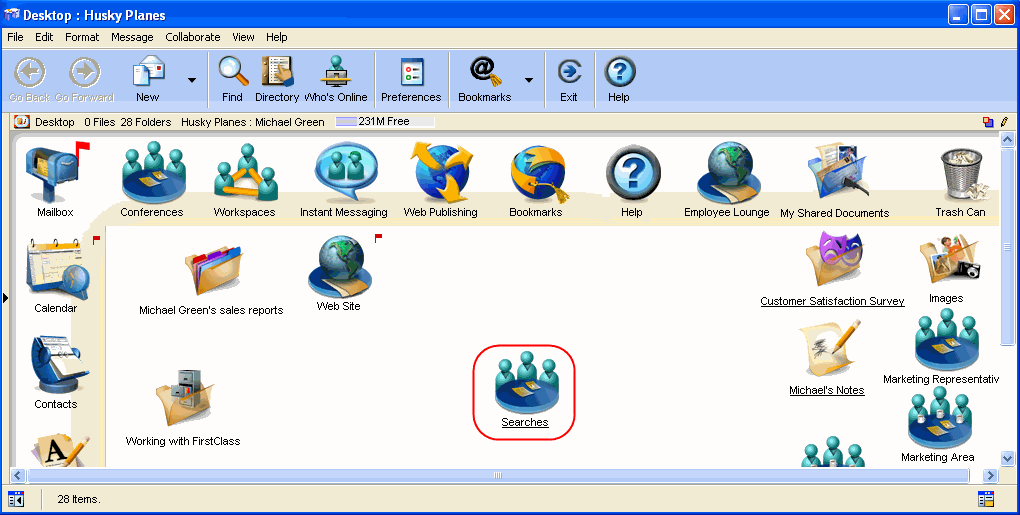
1               He creates a conference on his Desktop called Searches.
8102006_90756_1.png
2               He links each of his monitored conferences into it. To do this:
a               He right-clicks on the conference to be linked and chooses Add to Desktop.
b               He drags the linked conference into the Searches conference.
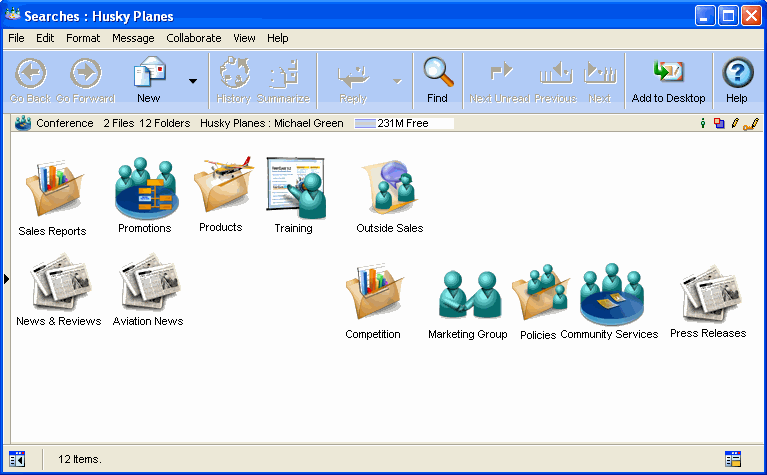
This is what his Searches conference looks like.
8102006_90837_2.png

When Michael wants to do a search, he opens the Searches conference, chooses Edit > Find from the menu, and enters his search criteria. All of the conferences that were linked to his Searches conference are searched.
9203_31709_1.png Variation
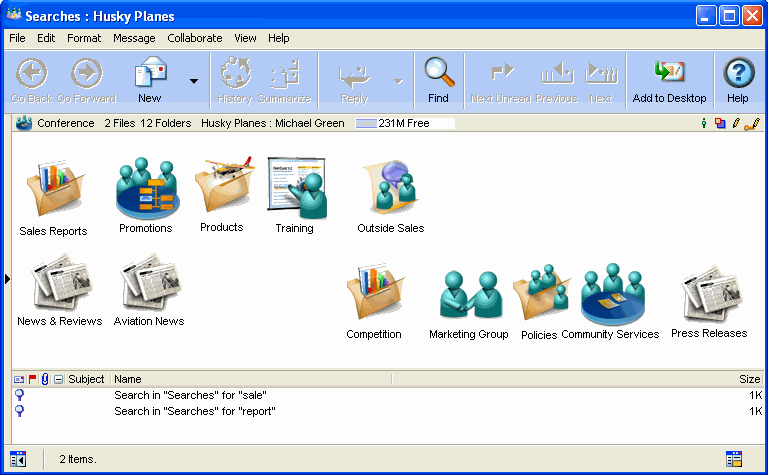
If Michael performs the same searches on these conferences regularly, he may want to consider saving them. They are saved in his Searches container, and he can run them at any time by double-clicking them.
8102006_90915_3.png